
Introduction
This guide provides a quick overview of your client dashboard after logging in, so you know where to find everything.
Overview of the Dashboard
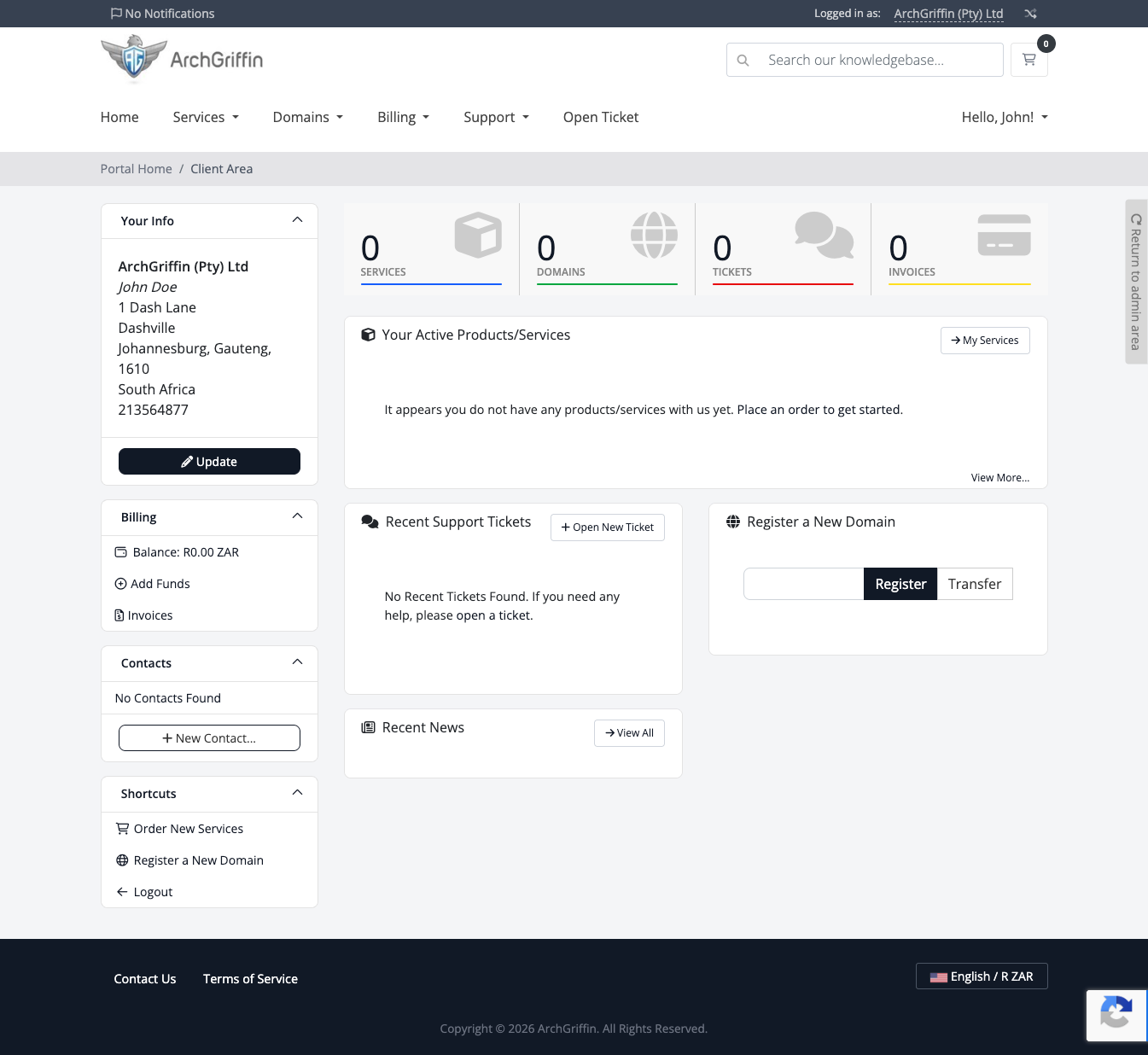
After logging in, you will land on your client dashboard. This is your central hub for managing your account, services, billing, and support.
Top Summary Bar
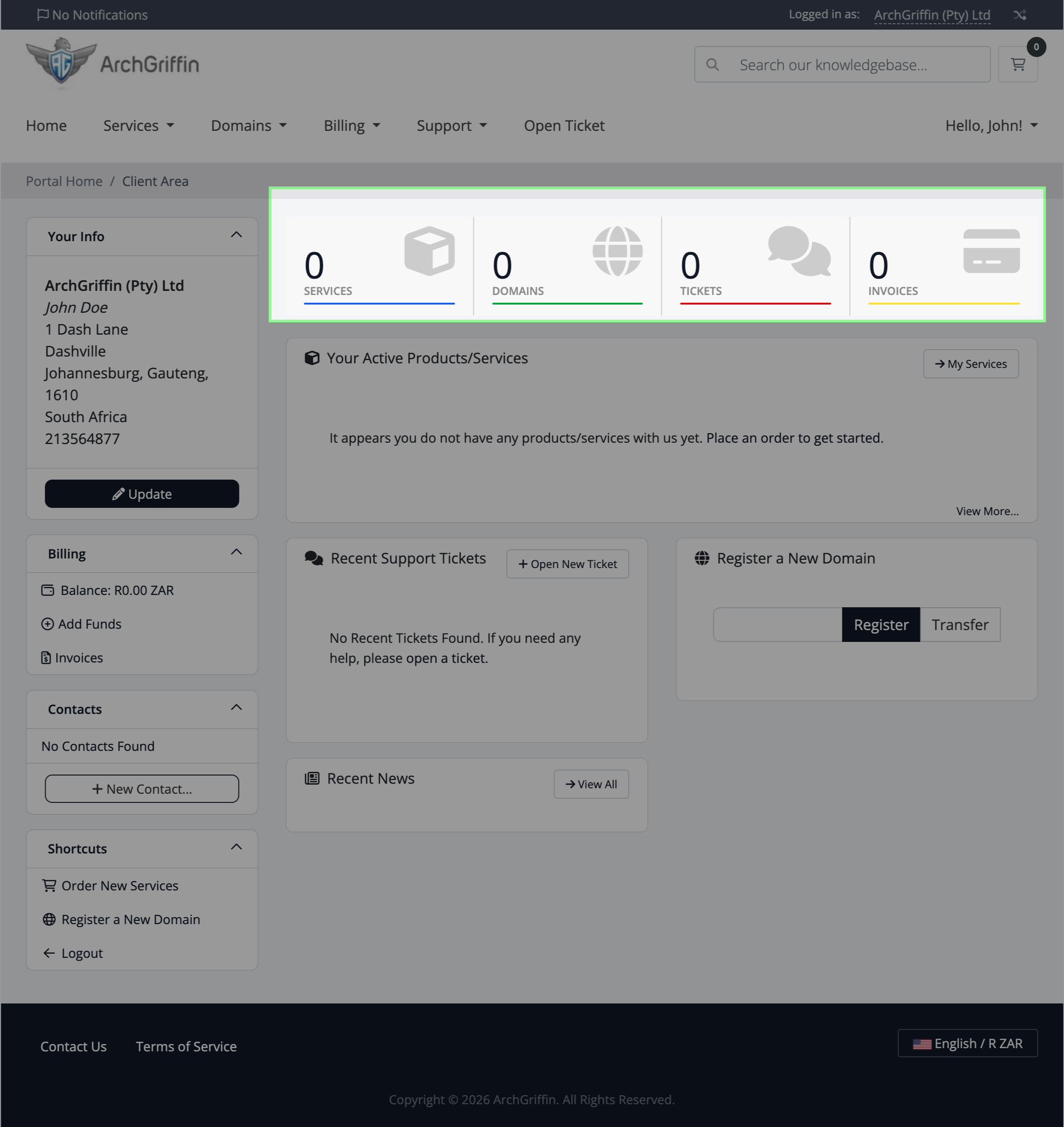
At the top of the dashboard, you’ll see a summary of your account:
- Services – Active hosting or products
- Domains – Registered domains
- Tickets – Support requests
- Invoices – Billing and payments
** These give you a quick snapshot of your account activity.
Your Information Panel
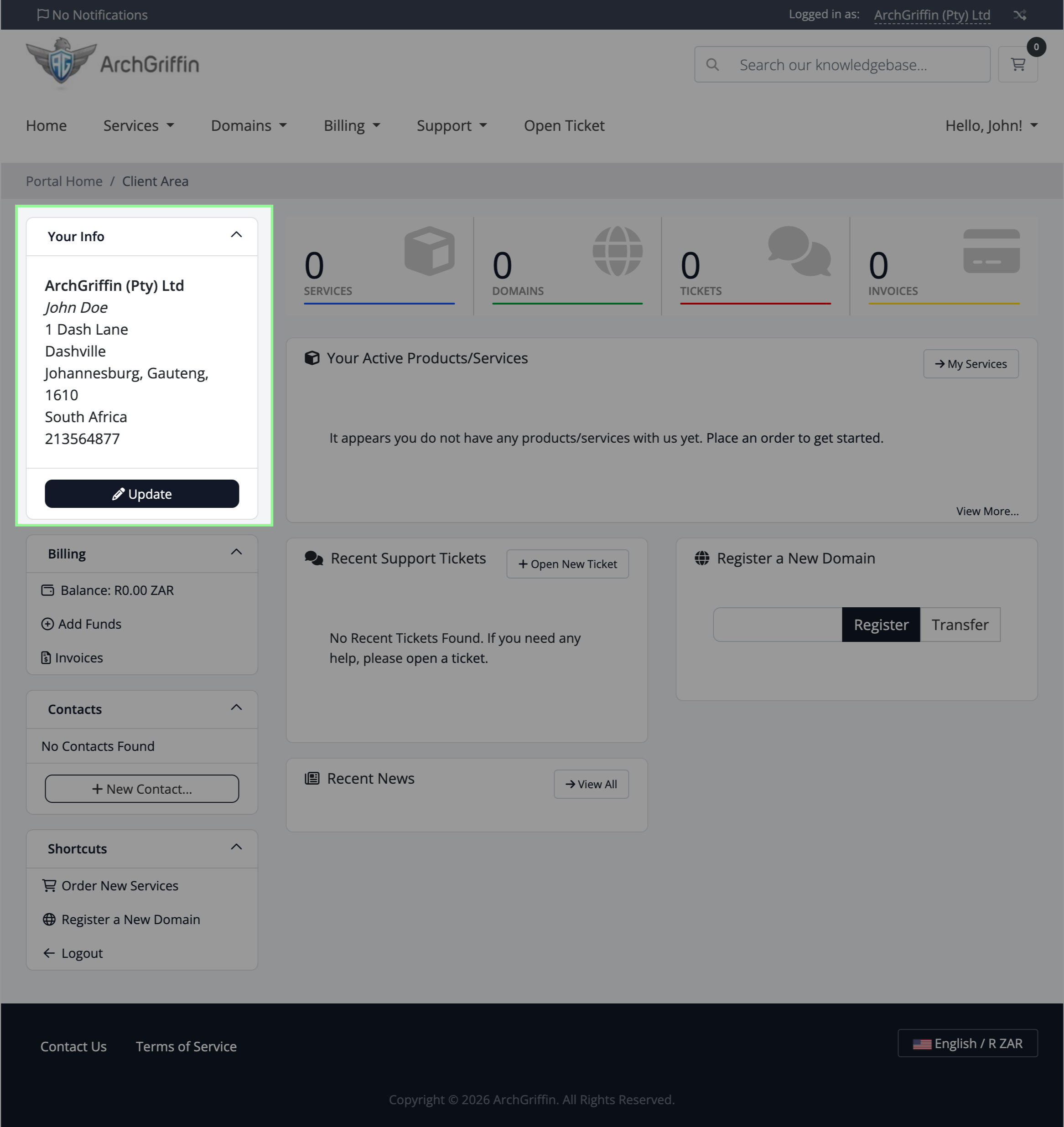
Displays your:
- Account details
- Contact information
** Click Update to edit your details.
Billing Section
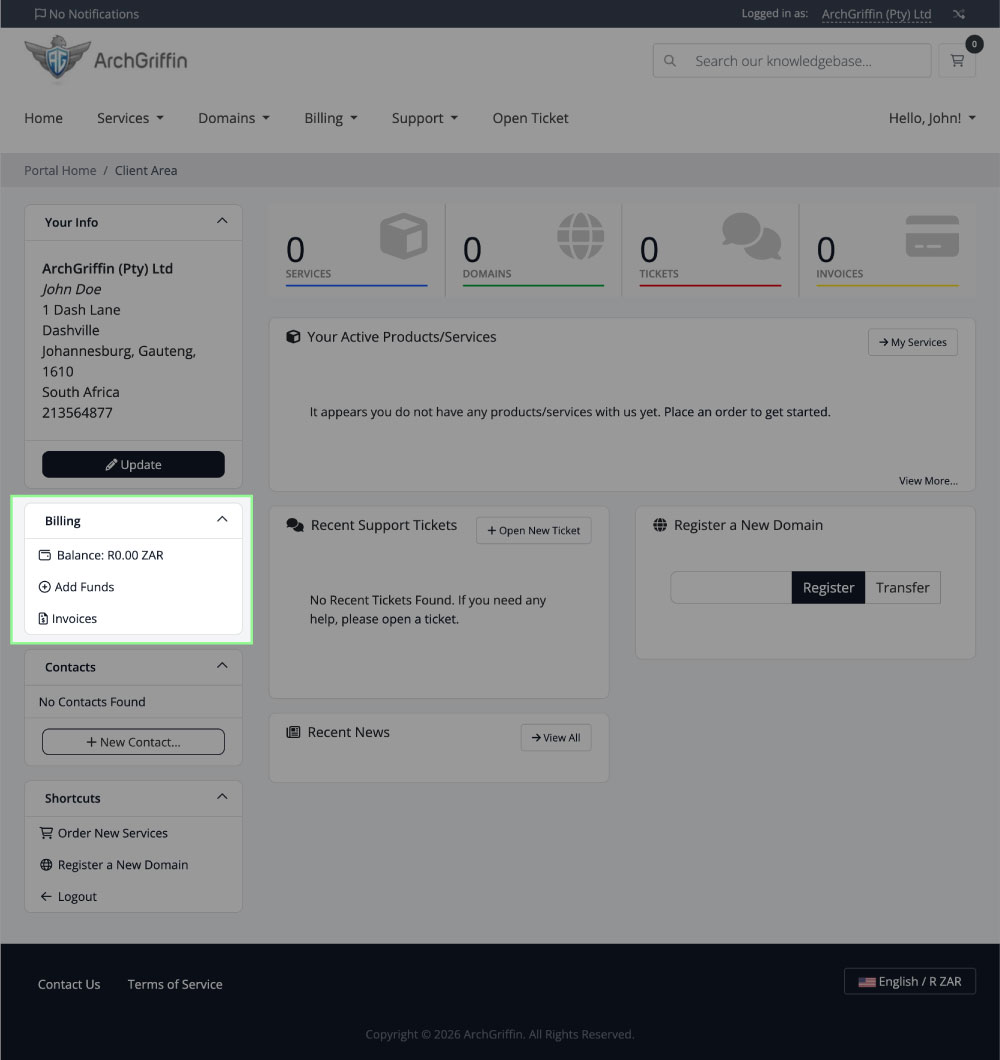
Here you can:
- View your account balance
- Add funds
- Access invoices
** For detailed billing actions, see the Billing & Invoices tutorial.
Active Products / Services
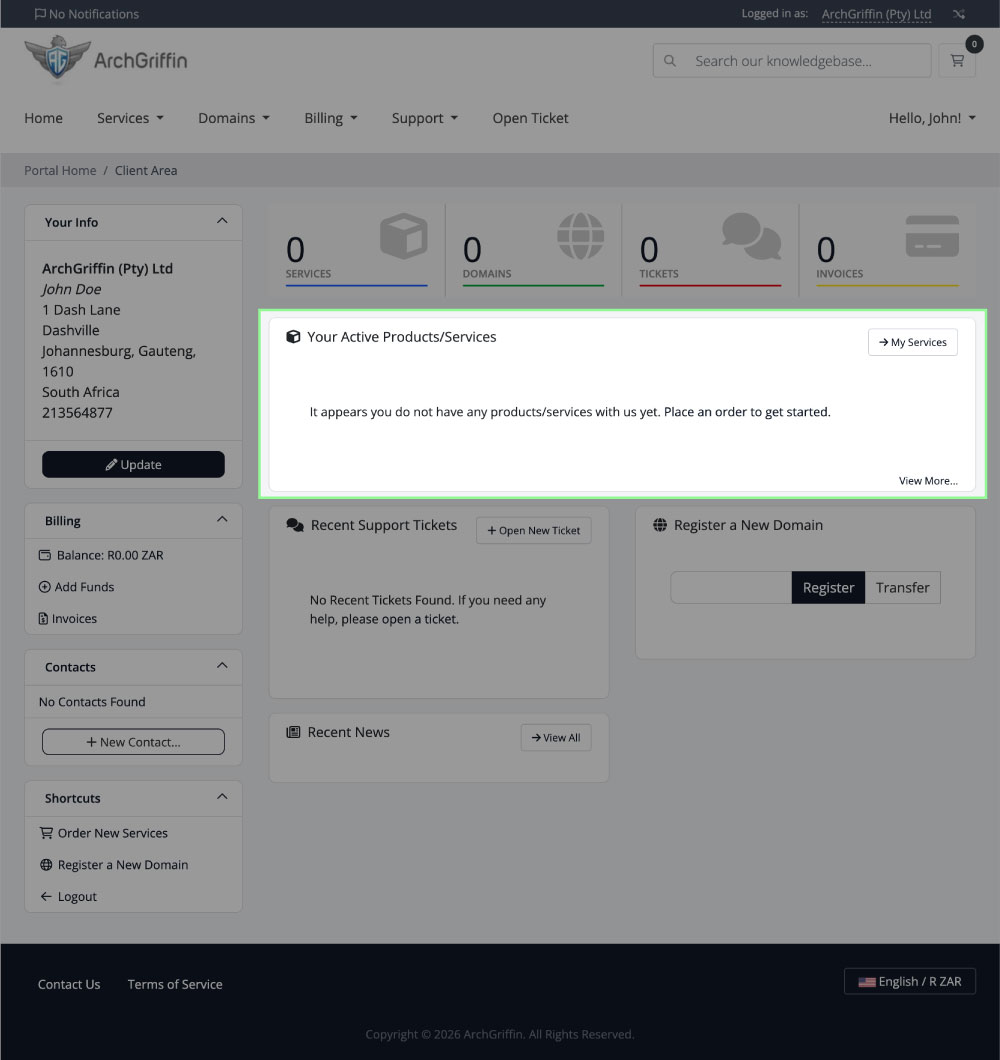
This section shows your current services.
** If no services are active, you’ll be prompted to place an order.
Support Tickets
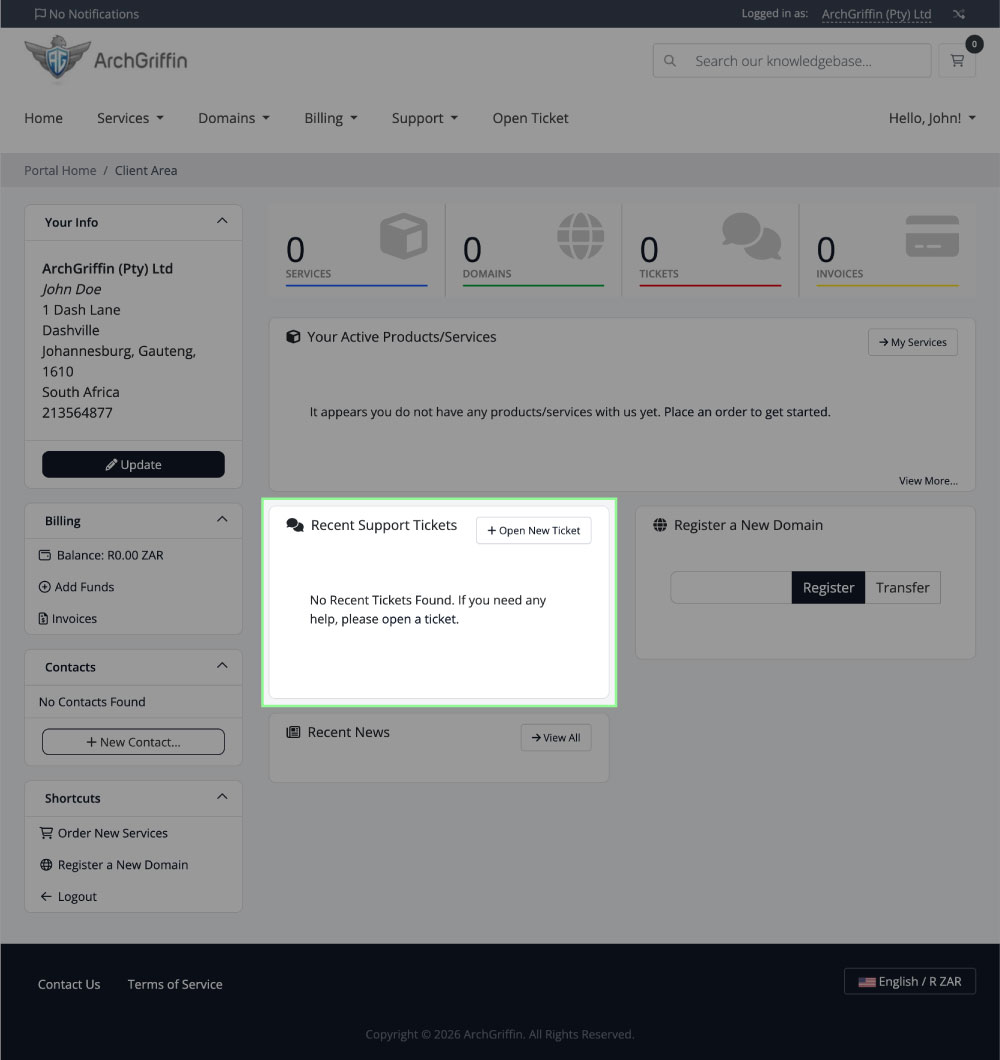
- View recent support tickets
- Click Open New Ticket to request help
Register a New Domain
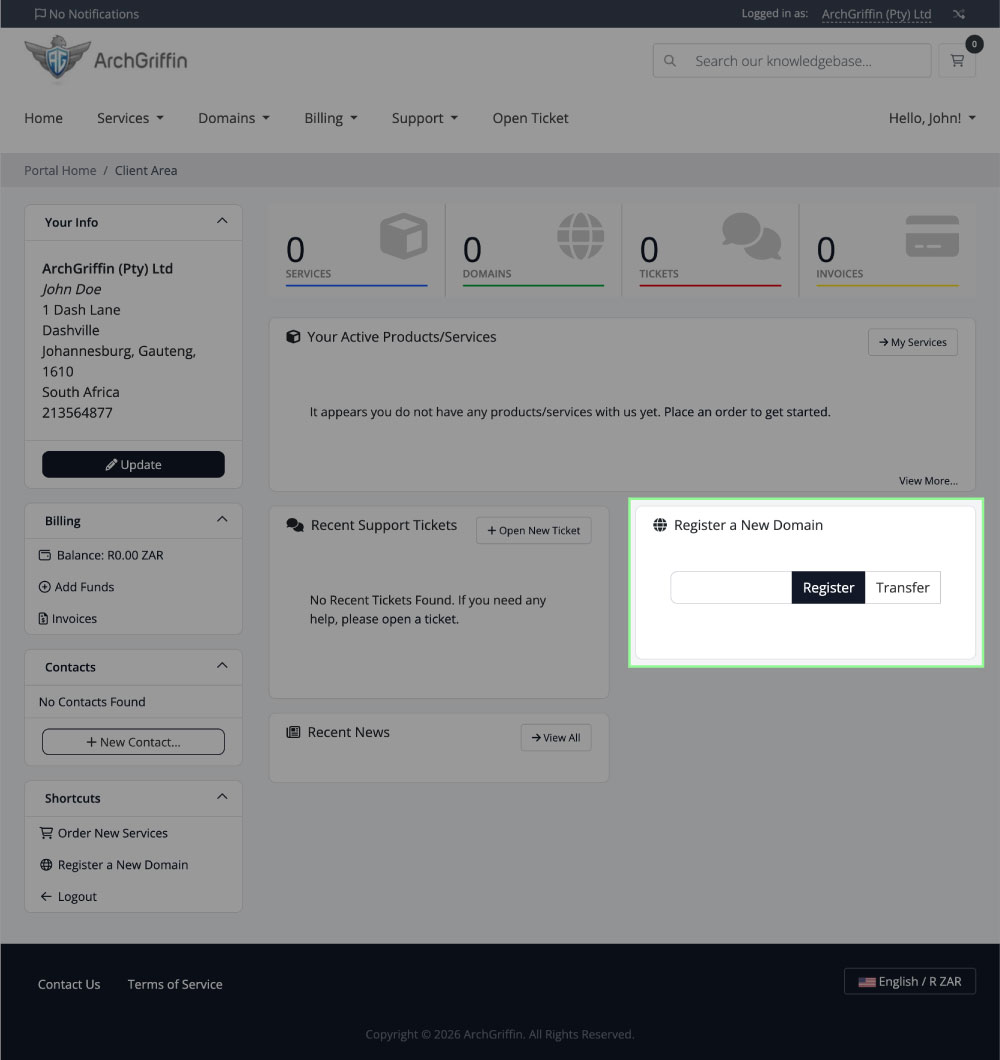
Quickly:
- Search for a domain
- Register or transfer a domain
Shortcuts Panel
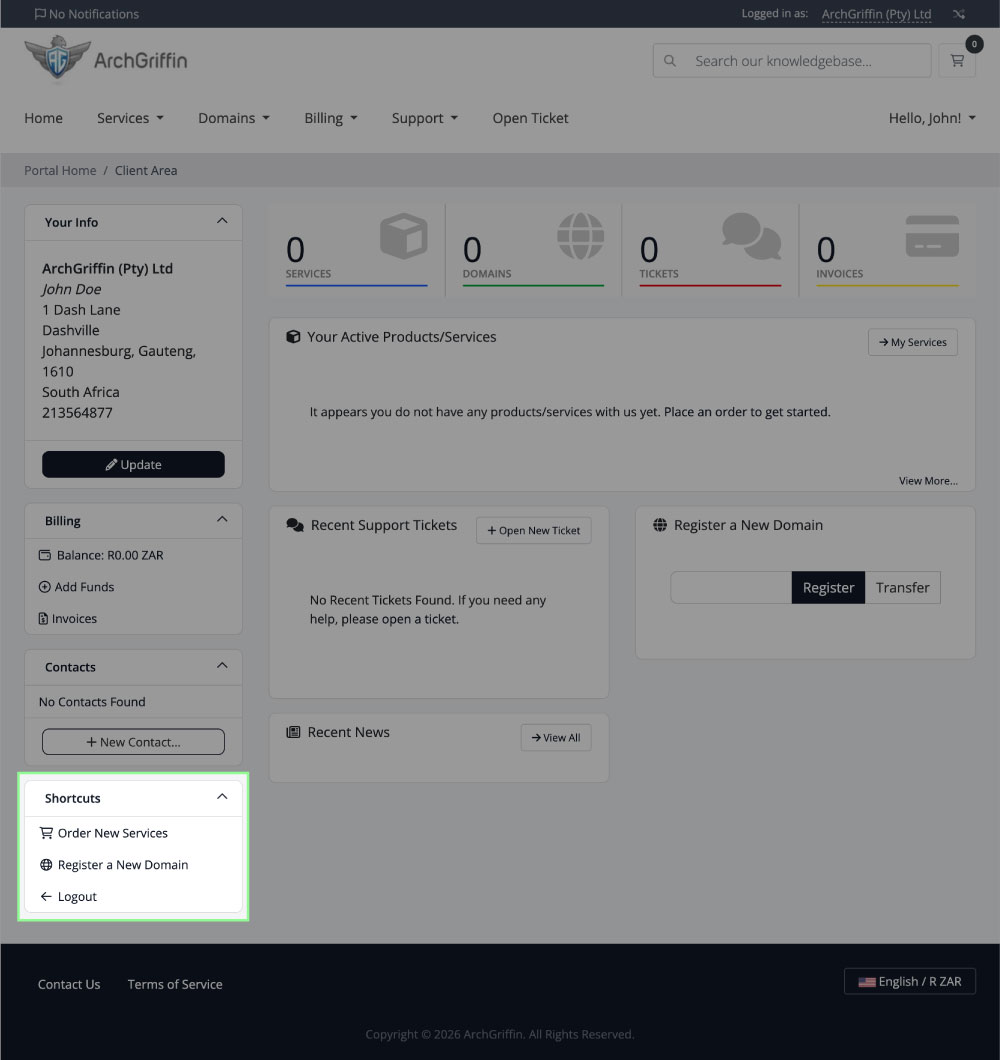
Quick access to:
- Order new services
- Register a domain
- Log out
Top Navigation Menu
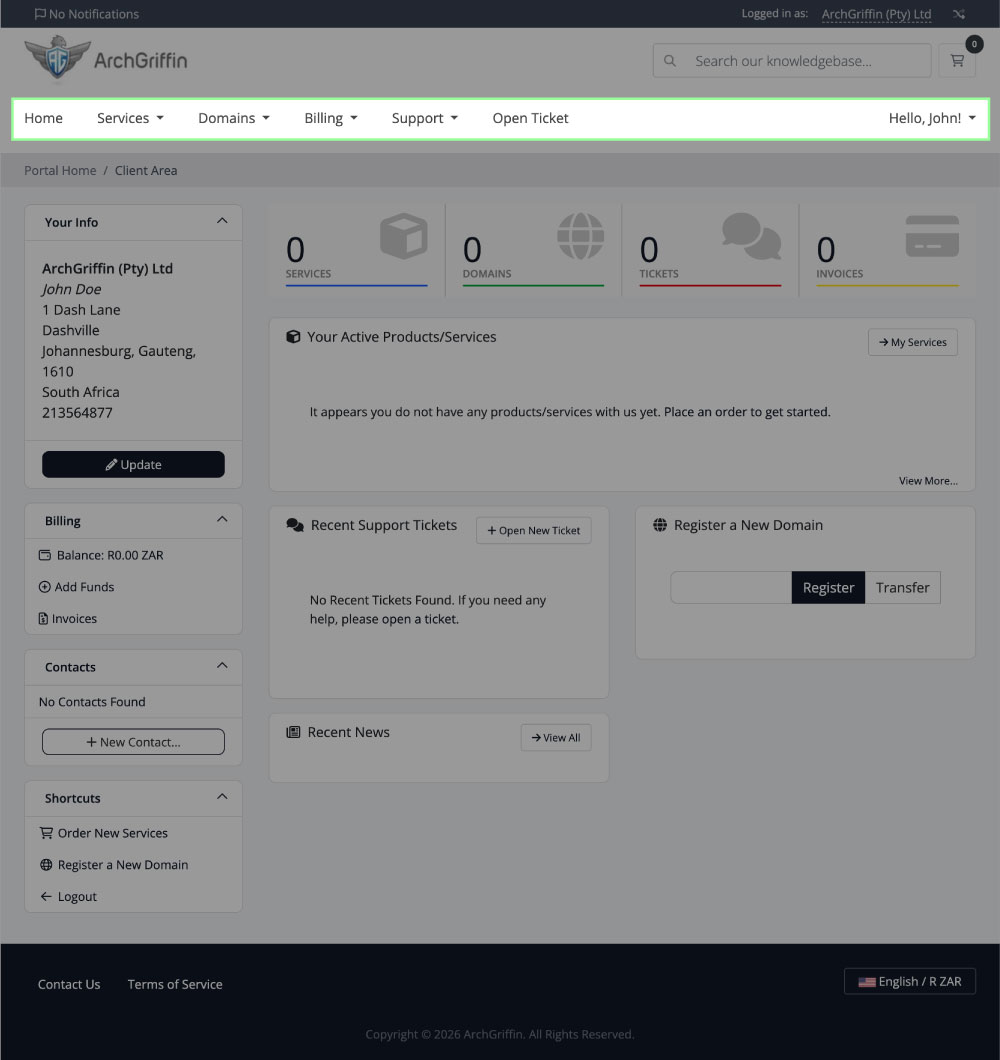
Use the main menu to access:
- Services
- Domains
- Billing
- Support
Pro Tip
Bookmark your dashboard for quick access:
https://portal.archgriffin.com